For many of the reports on MyFluxys, it is possible to let a system perform automatic downloads (APIs) through a URL with authentication parameters.
Automatic downloads are currently made available for the following affiliated companies within the Fluxys Group:
Balansys
Fluxys Belgium - Storage
Fluxys Belgium - Transmission
Fluxys LNG
Find hereafter an overview on how to create a technical contact in order to access the reports via the API gateway:
Creation of a technical contact
In order to access these APIs and be able to use an URL for automatic downloads, the Administrator(s) of your company (see section Single Sign-On) should create a technical contact in the Fluxys Group User Management module accessible via MyFluxys.
Such a contact is best created with the support of someone in your technical team as an application name will be required to identify the technical contact. During the setup, the technical contact should be granted an ‘Api User’ role linked to a specific Fluxys affiliated company and a specific agreement. The role should be linked to the appropriate affiliate in order to access its related data.
Example given:
For APIs offered by Balansys, the role should be linked to the ‘Balancing Agreement’,
For APIs offered by Fluxys Belgium for the Storage activity, the role should be linked to the ‘Standard Storage Agreement’,
For APIs offered by Fluxys Belgium for the Transmission activity, the role should be linked to the ‘Standard Transmission Agreement’ or the ‘Connection Agreement’ depending the requested APIs, and
For APIs offered by Fluxys LNG, the role should be linked to the ‘LNG Services Agreement (LTA)’ , ‘LNG Terminalling Agreement (LTA)’, ‘LNG Transshipment Services Agreement (LTSA)’, or the ‘LNG Agreement for LNG Truck Loading (LTL)’.
A welcome email is sent once this account is created by your Administrator, requesting to generate the credentials via the provided link. The generated credentials consists of two main components : the Client ID and the Client Secret. Those are more or less equivalent to an username and a password to authenticate.
Note : Those credentials should be kept securely and cannot be retrieved once generated. The Extranet-Administrator can always generate new credentials, but be aware that they will replace the previous ones.
Accessing the Reports
Each report has its dedicated API endpoint to use in order to download the reports. Parameters can be set in the endpoint URL to define requested periods, nodes,…
The detail of each report is described in the technical documentation available on the Fluxys website under the “Operational Information” Section.
Downloading reports requires:
· first to get a authentication token using the technical contact’s credentials.
· then, use this token to call the endpoint of the report and download it.
API Gateway
Authentication is done via OAuth2 protocol using the Client ID and the Client Secret.
A download using the API Gateway takes 2 distinct requests:
Authenticate and retrieve a bearer token
In order to retrieve a bearer token, with the Client ID and Client Secret, a http “GET request” needs to be made to the OAuth 2.0 token endpoint at: https://login.microsoftonline.com/4b81df1d-187a-47ef-a0b4-df7556124bc8/oauth2/v2.0/token
Endpoint | Description | Method |
|---|---|---|
https://login.microsoftonline.com/4b81df1d-187a-47ef-a0b4-df7556124bc8/oauth2/v2.0/token | This endpoint is the target of the initial request to exchange an authorization code for an access token. | HTTP-POST |
The body is composed with the following parameters:
Parameter | Value | Required |
|---|---|---|
grant_type | client_credentials | Yes |
scope | https://fluxysidpextranet.onmicrosoft.com/bed56d13-897d-4b7d-87ab-5e197bea1609/.default | Yes |
client_id | Client ID as given on technical contact setup | Yes |
client_secret | Client secret as given on technical contact setup | Yes |
After successfully validating the provided Authorization header, the server will return a response similar to the following:
HTTP/1.1 200 OK Content-Type: application/json;charset=UTF-8 Cache-Control: no-store Pragma: no-cache { "access_token":"2YotnFZFEjr1zCsicMWpAA", "expires_in":3600, }The value associated with the JSON key “access_token” will be used as a Bearer authorization header in the next step and it must be used without any transformation.
Download a report by providing the bearer token to the API gateway
To download the actual report, make a “GET request” to the report url (eg.
Make sure to include the bearer token retrieved in previous step in an ‘Authorization: Bearer’ header.
GET /TransmissionHandler/Reports/WebTrack/flowmeasurement/node/new/hourly/get HTTP/1.1
Host: apigateway.portalextranet.flbe.fluxys.com
Authorization: Bearer 2YotnFZFEjr1zCsicMWpAA
Accept: application/xml
After validating your access token, the report will be returned. The main accepted format reports are .xml and .csv that you need to define in the “Accept” header.
Example
This example illustrates a way to authenticate and download a report using the API gateway by using an API testing tool (PostMan).
Create a new request. This request will handle the authentication in its request headers and will process the “GET request” to download the report.
Authentication
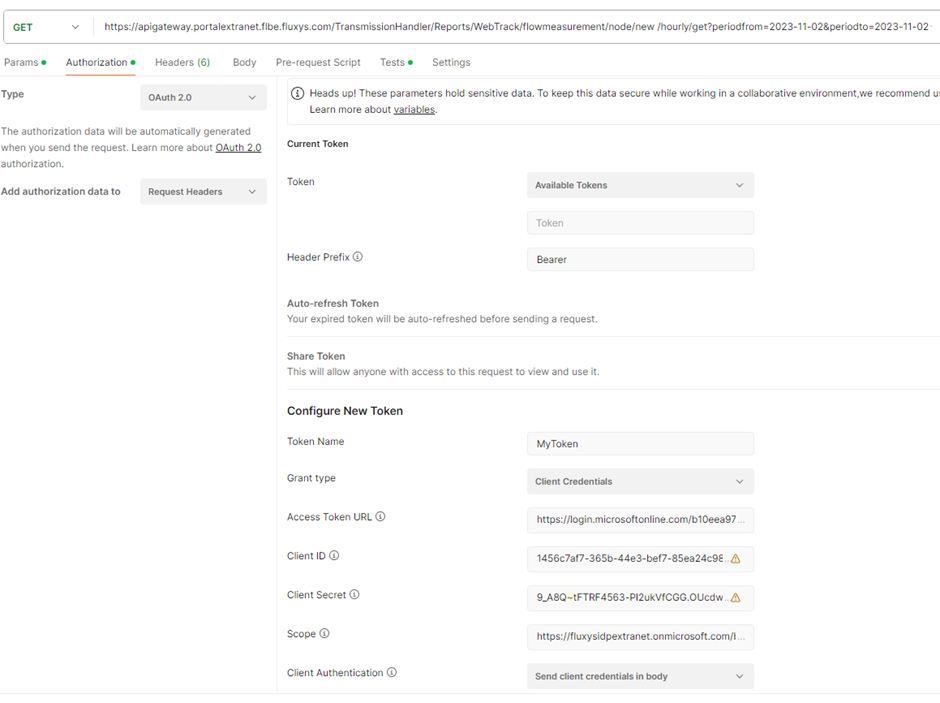
Insert the authorization attributes ( in the ‘Authorization’ tab) : fill in the form with the required parameters ( as described here above Authenticate and retrieve a bearer token ) :
Type : OAuth 2.0
Header Prefix : Bearer
Access Token URL should contain the endpoint : https://login.microsoftonline.com/4b81df1d-187a-47ef-a0b4-df7556124bc8/oauth2/v2.0/token
Client ID , Client Secret
Scope : https://fluxysidpextranet.onmicrosoft.com/bed56d13-897d-4b7d-87ab-5e197bea1609/.default
Client Authentication : save client credentials in body
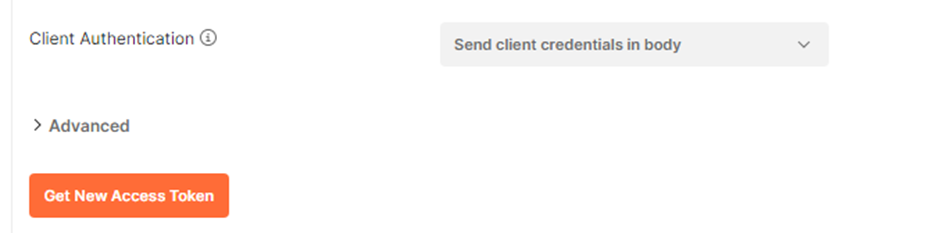
Click on ‘Get New Access Token’ to run the request
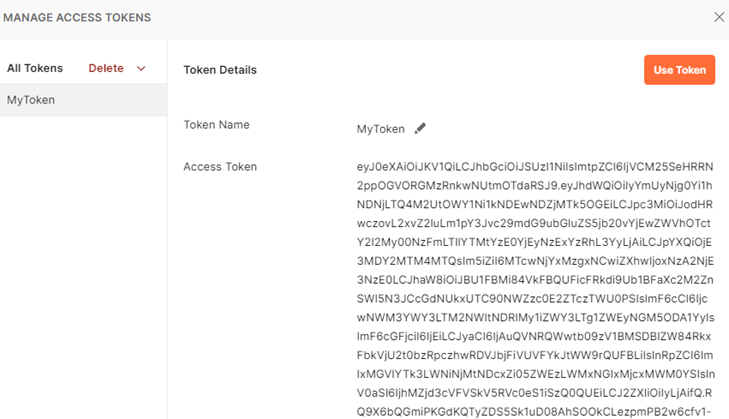
Retrieve token and store it in a variable
Download the Report
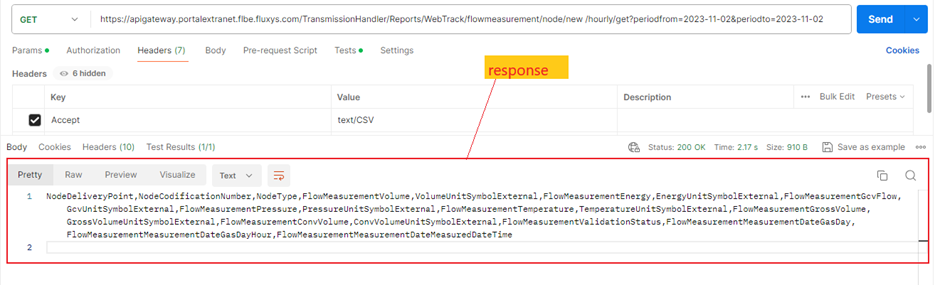
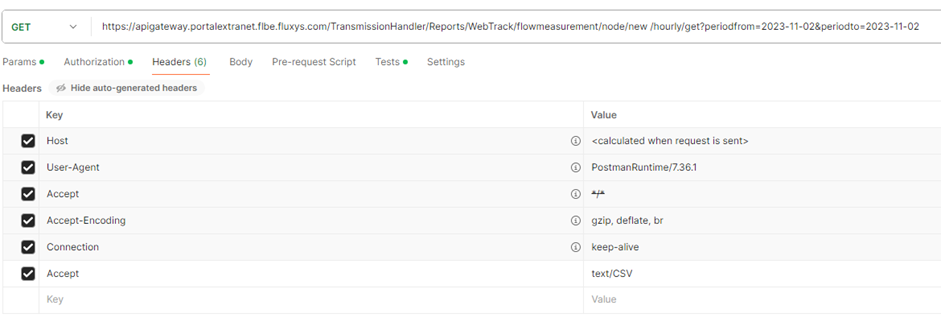
Fill the “GET request” with the URL of the desired report. E.g : https://apigateway.portalextranet.flbe.fluxys.com/TransmissionHandler/Reports/WebTrack/flowmeasurement/node/new/hourly/get?periodfrom=2023-11-02&periodto=2023-11-02
Insert headers attribute (in the Headers tab)
Accept : application xml or text/csv ( depending of the desired output format: .xml or .csv)
Click on ‘Send’ and get the requested report in the response