This section will guide you through the process of creating your account during your first-time login and setting up two-factor authentication (2FA) for added security. If you’ve already previously set up your Fluxys single sign-on account, you may skip this section.
Navigate to the User Management module on MyFluxys
Open your web browser and navigate to the User Management module on MyFluxys.
User Management Module (aka CRM Extranet)
Enter your email address
Enter the email address that has been used to set up your account on MyFluxys. After entering the email address, click the Continue button.
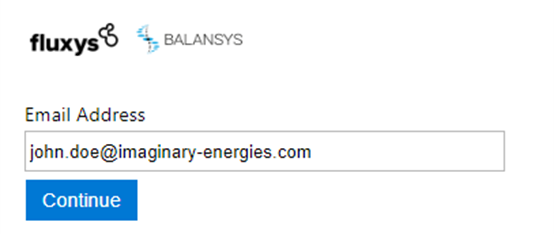
If you receive an error message, please contact your Administrator.
Your email address could not be found in our User Management module. Check with your Administrator which email address he/she registered for you.
Your account has been deactivated. You have not used your account in over 365 days so it has been deactivated for security reasons. The account needs to be reactivated by your Administrator before it can be used. If you are an Administrator yourself, please contact your Fluxys point of contact.
Initiate the first-time login flow
As you are logging in for the first time, you need to set a password. In order to do so, click the First time login link.
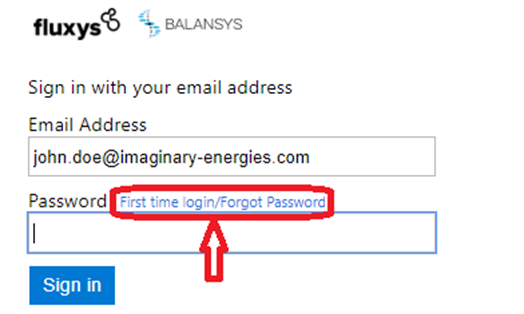
Send a verification code
In this step, we validate your identity. By clicking the Send verification code button, an email will be sent to your email address with a temporary verification code.
Check your email
Wait for the email with the verification code to arrive. Note that the verification code will only be valid for 5 minutes. After 5 minutes, you will need to request a new verification code in order to continue.
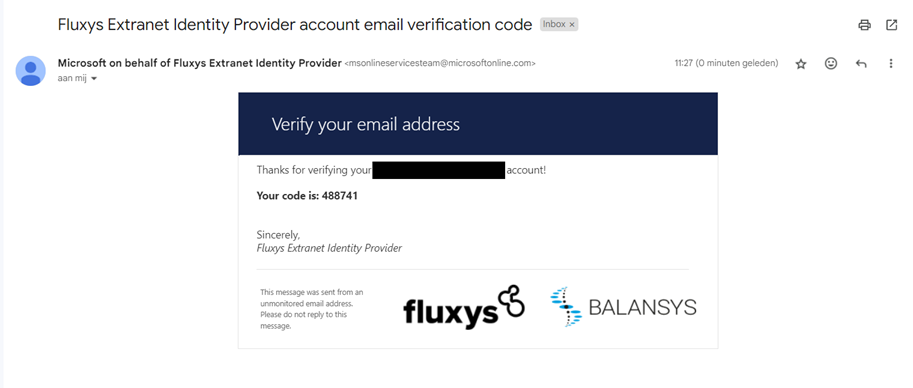
Enter the verification code
Enter the verification code on the logon screen and click Verify code.
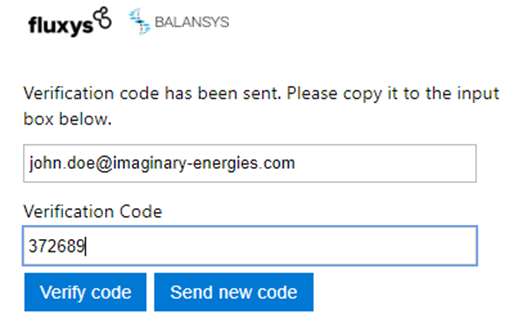
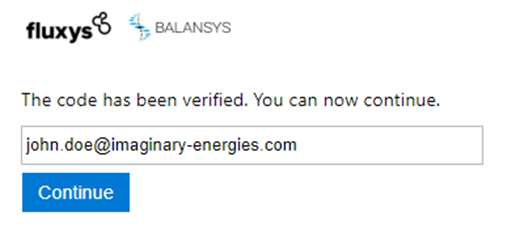
Code verification result
If the verification code entered is correct and entered within 5 minutes, you will receive a message that the code has been verified. If your verification code is rejected, please go back to the previous step (using the browser back button) and request a new verification code. Click Continue to proceed to the next step.
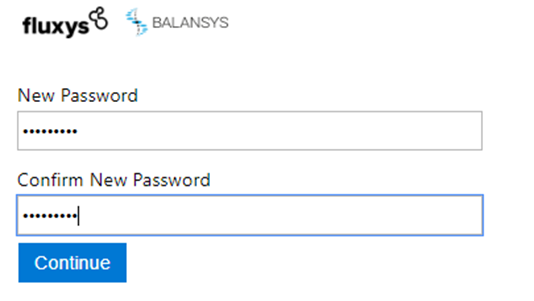
Choose and confirm your password
Enter the password you would like to use for your account.
The allowed password characters are:
A-Z
a-z
0-9
@ # $ % ^ & * - _ + = [ ] { } | : ‘ , . ? / ` ~ “ ( ) ;
Characters disallowed are:
Spaces
Unicode characters
A . character immediately preceding the '@' symbol.
The password should be between 8-16 characters, and requires 3 out of 4 of the following:
Lowercase characters
Uppercase characters
Numbers (0-9)
Symbols (see the allowed characters above)
Setup a Microsoft Authenticator app account
As a final step, you will register your account in the Microsoft Authenticator app. An Authenticator app is an application that runs on your mobile phone and generates a number, which you will have to provide next to your password during logon. It's an extra security measure to prevent identity spoofing known as multi-factor authentication. If the Microsoft Authenticator app is not yet installed on your mobile phone, download and install it by following the instructions displayed on-screen. Scan the QR code with your Authenticator app, select Work account if asked, and once your Fluxys account is registered on your mobile device, click Continue in your browser. | 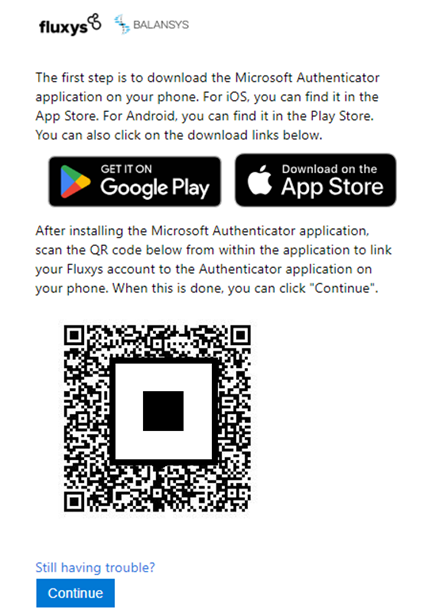 |
|---|
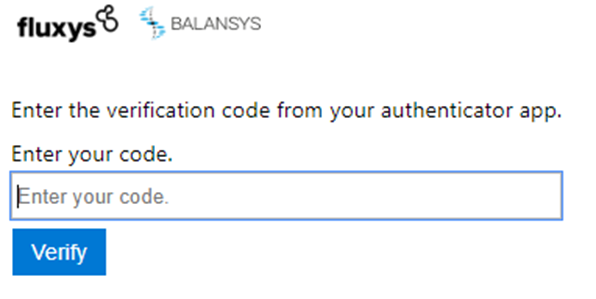
Enter the code generated by the Authenticator app
Open your registered account in the Authenticator app and copy the displayed number into your browser window. This is to ensure that your account is properly registered in the Authenticator app.
Click Verify to verify the generated code and finalize the registration process.
You’ve successfully logged in and can use these new credentials to log in moving forward!